Powering on the PC
After initial install, for the PC to work correctly, it will need to download content after it has been connected to the store network.
With at least TV 1 connected to the PC, and the PC patched to the network jack, power on the TVs and plug in and turn on the PC.
Shortly after booting, the PC will acquire an IP address and start downloading software and content. Verify the PC has an IP address and has started the build process by observing TV1. If the PC does not have an IP address it will not build or load with content. If an IP address is not present, verify the data jack is connected to the switch and switch port.

The Download Process
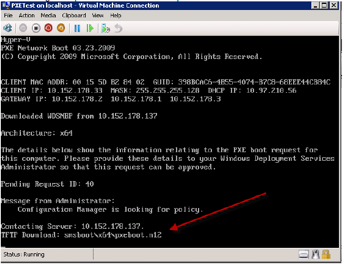
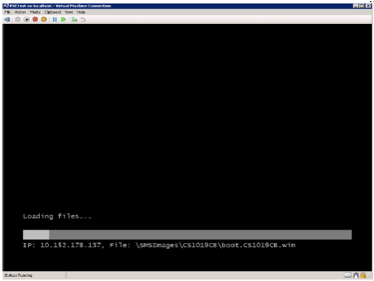
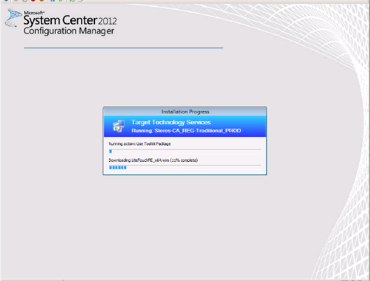
After the power connection to the PC is made it will automatically power up and begin the software build and content download process. Connection to a monitor is required in order to monitor the progress. The following screens shots are what you should see while the PC is loading. The download process takes approximately 1 hour.
Interrupted Download Process
If, during the download, the process is interrupted (e.g. power fluctuations, network outage, TV/Display failure), the download process will fail and the PC will play no content to the video wall. To correct this, the process must be manually restarted by following the steps below.
- Plug in a USB keyboard into any available USB port on the PC.
- Push the power button on the PC and allow it to shut itself down.
- Wait 60 seconds after the PC has completely shut down.
- Push the power button one time to restart the PC.
- Repeatedly push the F12 key for approximately 10-15 seconds while the computer restarts. This will clear the download errors and start the process over again. When confirmation screens appear (above), stop pushing F12 and allow the process to complete normally.
Comments